Custom Map Themes on Apple CarPlay
27 August 2026 · 6 min read
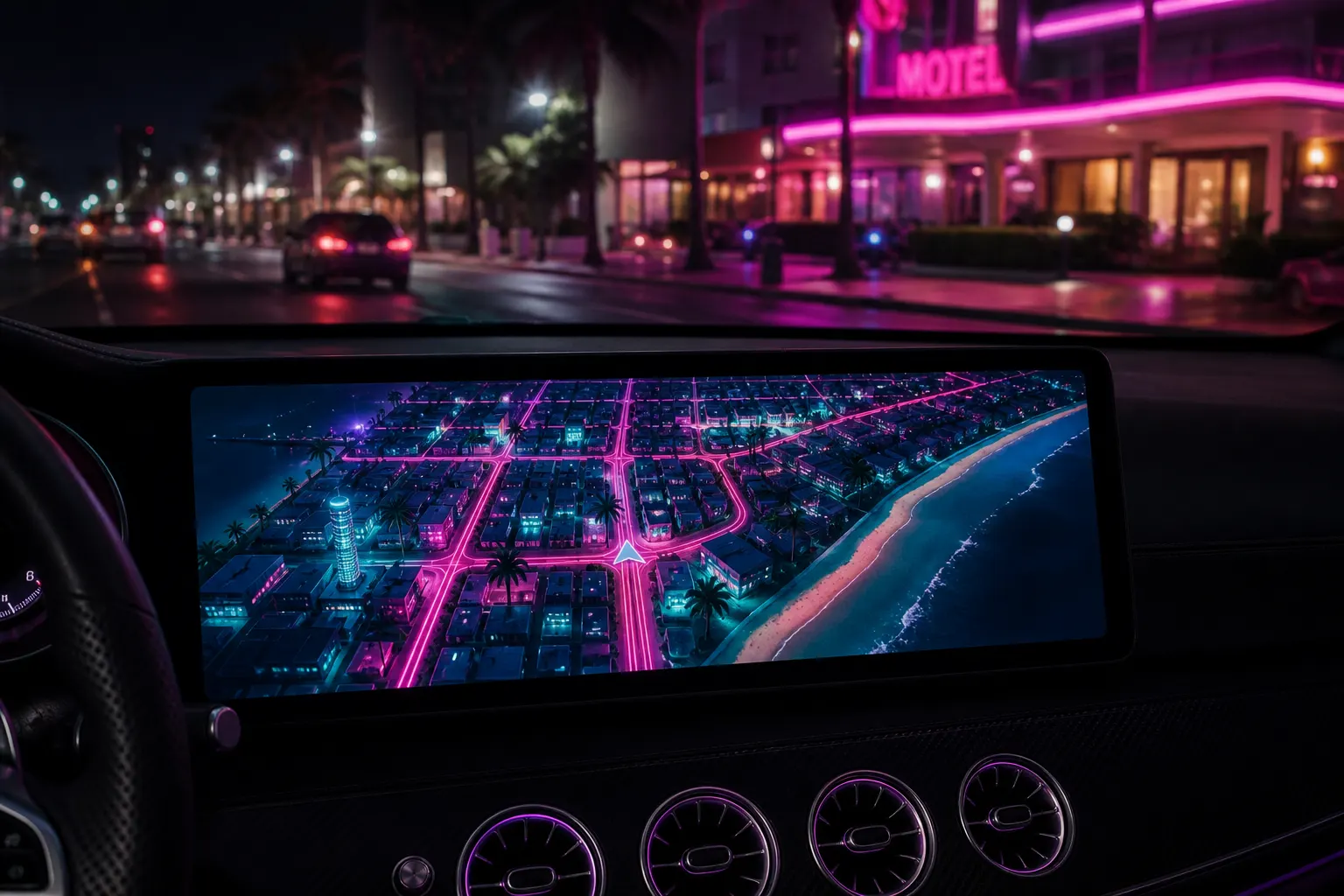
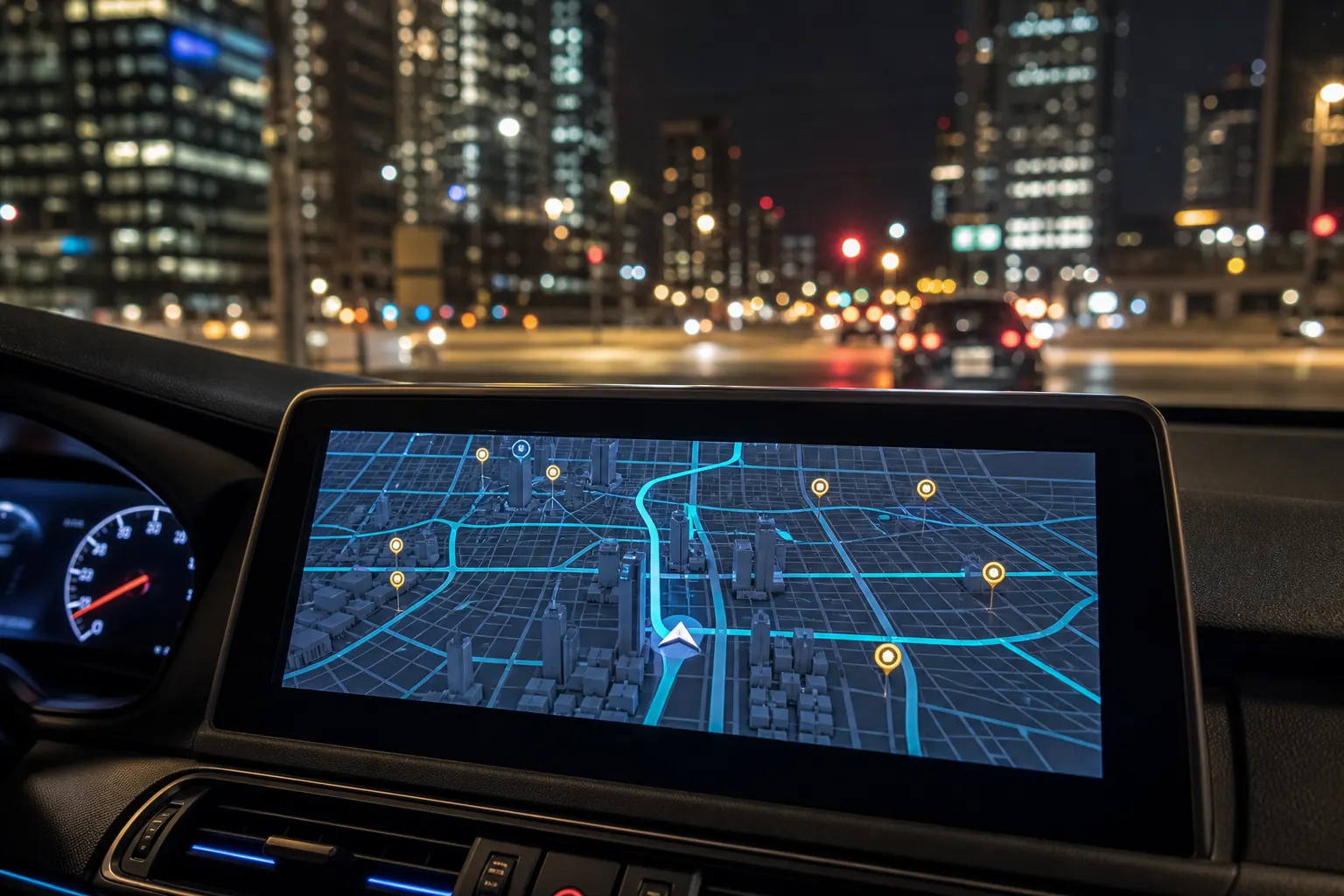
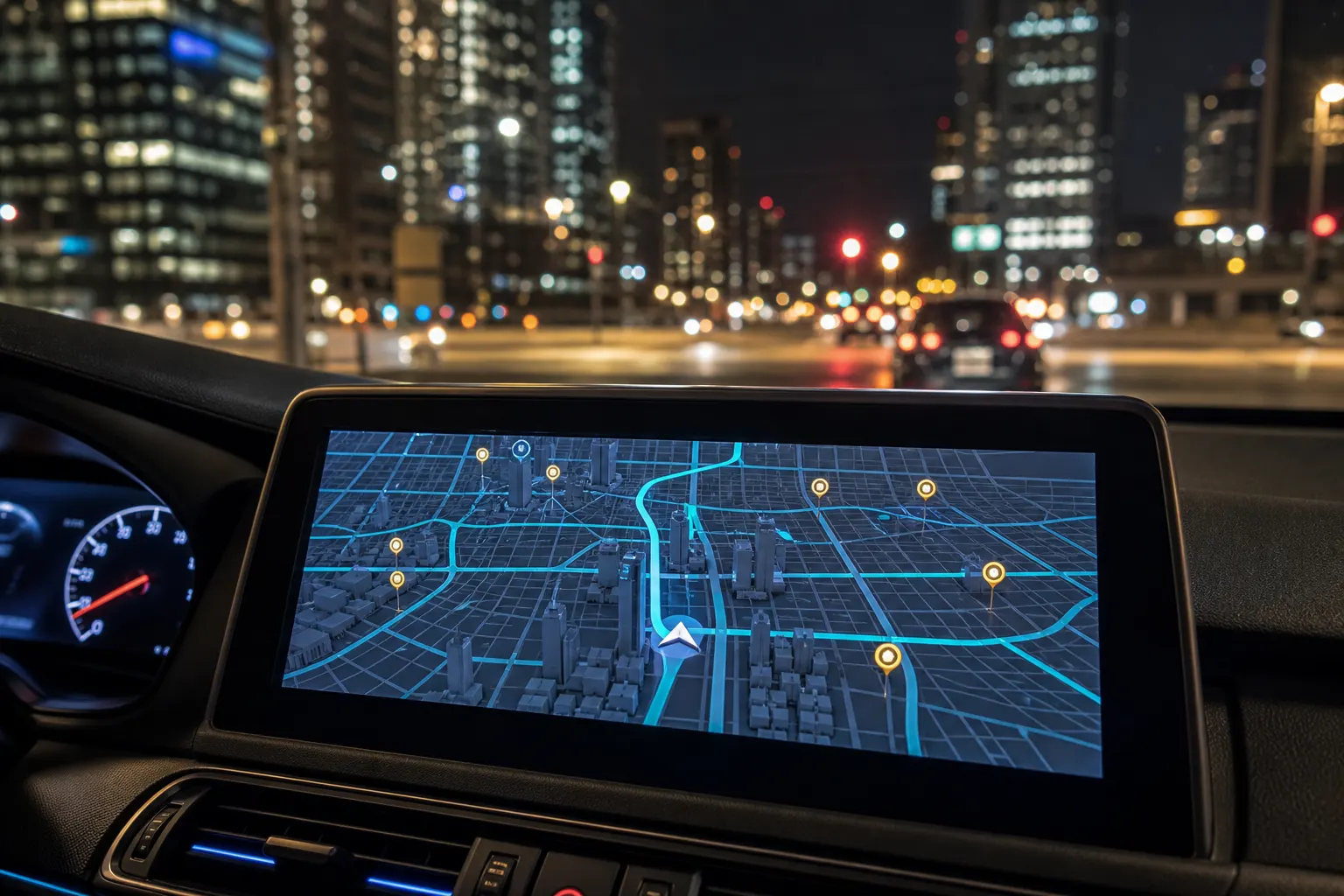
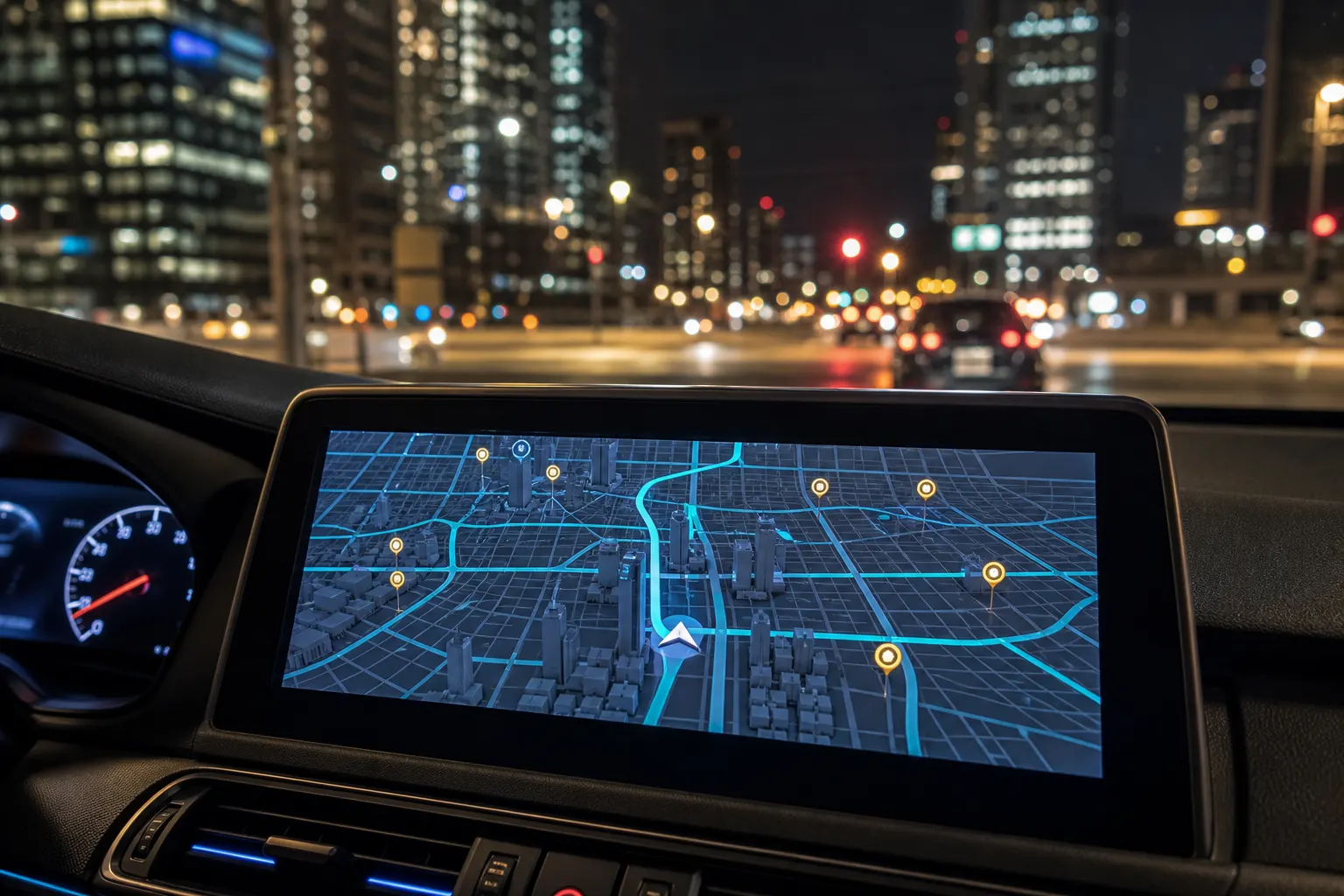
Custom map themes on CarPlay in Game Maps IRL means: pair the phone, unlock in-car maps, open the app on the dash, then tap layers and pick a skin. Los Santos, Blockworld, Saint Denis, Night City, San Andreas, and Leonida all use that path. The routing engine does not change. The map on the screen does.
What you need
An iPhone, a CarPlay car or aftermarket head unit, a cable or wireless CarPlay, and Game Maps IRL. If Apple Maps already appears on the dash, CarPlay is working. Open Game Maps IRL on the phone once and grant location so the icon can show up in the car launcher.
The download is free. CarPlay support and premium themes unlock together with a one-time purchase inside the app. Game Maps IRL is independent and unofficial. The themes are original art, not licensed game maps.
How to get a theme on the dash
- Install and open on iPhone. Install Game Maps IRL, open it once, and grant location.
- Connect CarPlay. Plug in USB-C or Lightning, or use wireless CarPlay if the car supports it.
- Unlock in-car maps. Premium themes and CarPlay support unlock together with a one-time purchase inside the app.
- Open Game Maps IRL on the dash. Launch it from the CarPlay home screen. Add it in Customise if it is missing.
- Pick a theme and drive. Tap layers, select a theme, set a destination. Voice guidance stays the same.
If the icon is missing after that, Settings → General → CarPlay → your car → Customise. Follow real road signs. A themed dash is still a screen; it is not a reason to stare at magenta towers through a junction.
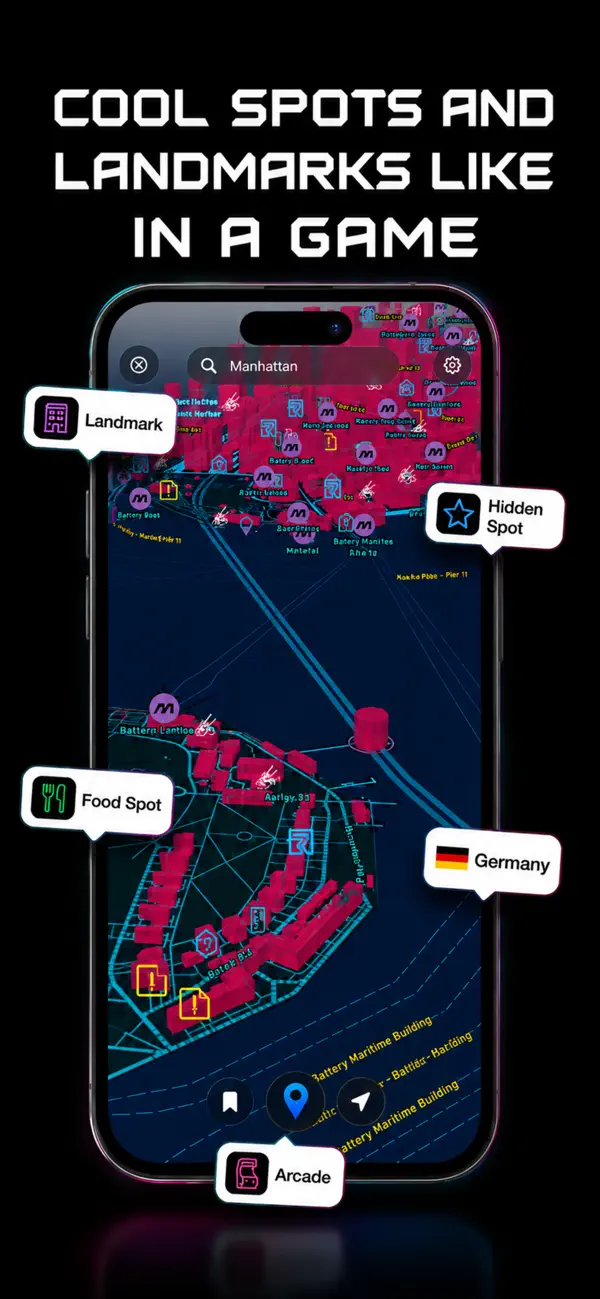
Unlock in-car maps once, then swap themes on the next commute without starting a new route.


Theme walkthroughs
Each theme has a CarPlay-only guide with the layers name, what the skin looks like, and the same connect steps in more detail:
- GTA 5 / Los Santos on CarPlay
- GTA 6 / Leonida on CarPlay
- Minecraft / Blockworld on CarPlay
- Red Dead / Saint Denis on CarPlay
- Cyberpunk / Night City on CarPlay
- San Andreas on CarPlay
Android is a separate launcher. Use the matching Android Auto guide from the blog index if the phone is not an iPhone. Switching themes without CarPlay is covered in how to switch map themes. Compared with the default CarPlay maps app, see Game Maps IRL vs Apple Maps.
Los Santos is the GTA 5-inspired dark grid with bright arterials. Blockworld is voxel streets, the same look as the Paris 6th arrondissement listing shot. Saint Denis is tan paper and a red crosshair (Fillmore in San Francisco is the example). Night City is magenta buildings on a cyan grid. San Andreas uses ochre land and thick freeways. Leonida is the GTA 6-inspired coastal night palette. You can change any of these mid-drive; layers does not cancel the polyline.
Wireless CarPlay and a USB cable are equal for this app. Use whichever already works for Apple Maps in that car. After the icon is on the home screen, treat Game Maps IRL like any other CarPlay maps tile: set a destination on the dash or from the phone, then watch the next-turn banner. Voice prompts keep the same wording. Only the drawing of land and POI blips changes. Follow painted road signs through the junction anyway.
Frequently asked questions
Why is Game Maps IRL missing from my CarPlay home screen?
Open the app once on the iPhone and grant location. Then check Settings → General → CarPlay → your car → Customise. Premium in-car support unlocks with the same one-time purchase as the themes.
Do I pick the theme on the phone or on the dash?
Either. Layers on the phone and layers on CarPlay both change the skin. The active route stays put. Follow road signs while you tap.