How to Use the GTA 5 Map on Android Auto
26 August 2026 · 6 min read
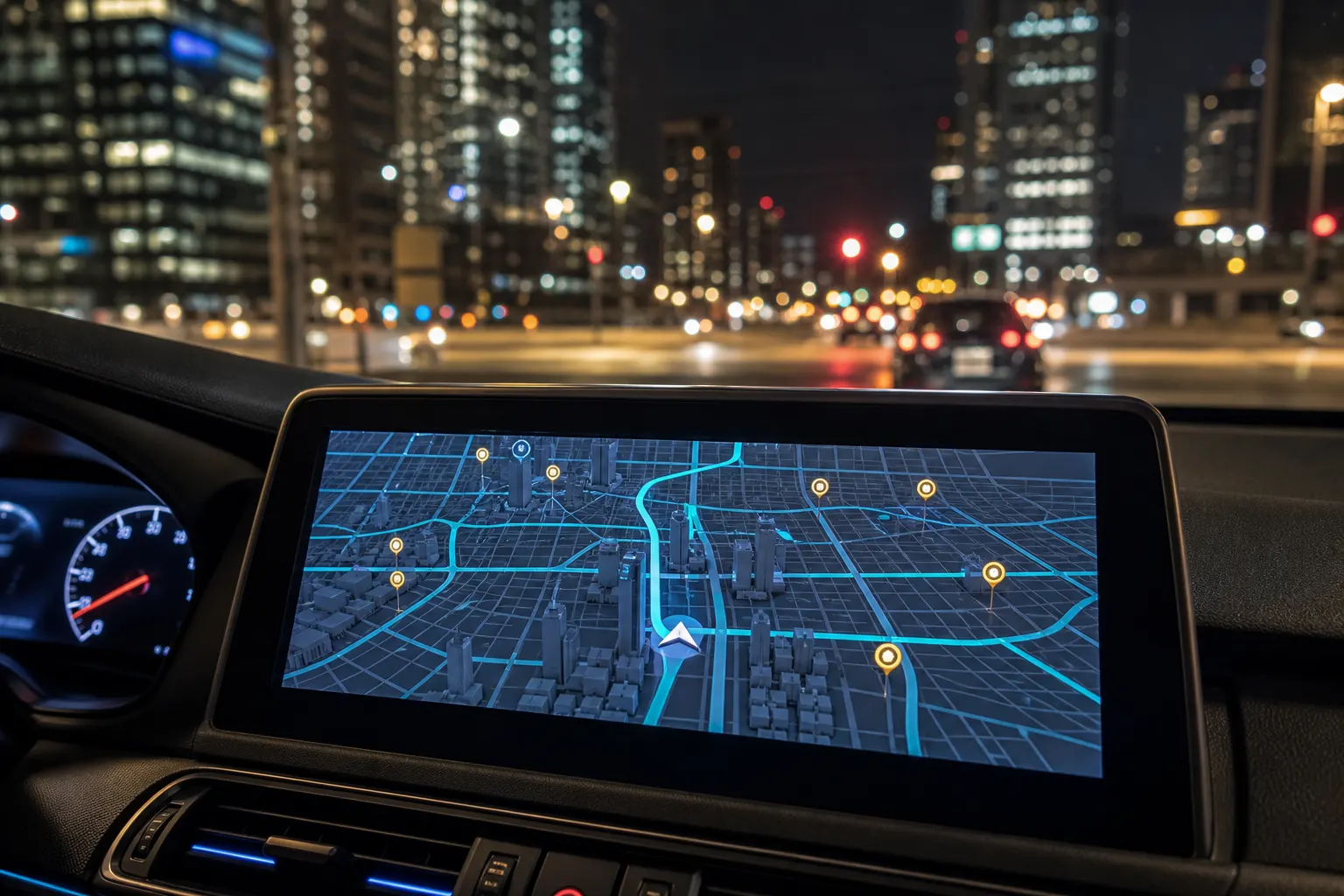
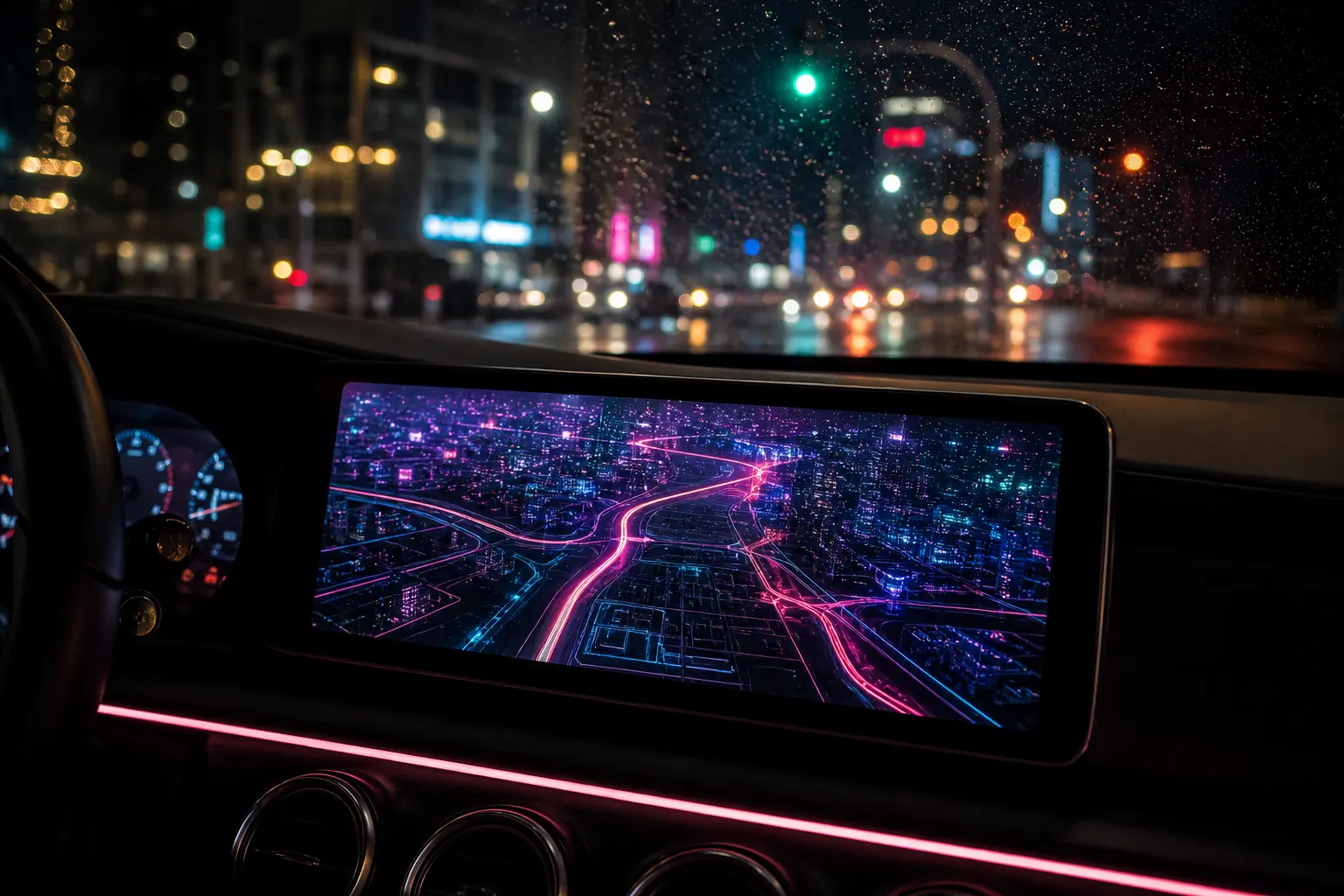
Picture your actual streets drawn with glossy downtown footprints, cyan roads, and night-city pins — the GTA 5 map look — sitting on the Android Auto screen in front of you. Game Maps IRL calls this theme Los Santos. Here is how to get it running in under a minute.
Quick answer
- Pair your phone with the car the same way you would for any Android Auto app.
- Open Game Maps IRL from the car launcher.
- Open layers and select Los Santos.
- In-car support and premium themes unlock together with a one-time purchase in the app.
- Set a destination. Turn-by-turn still works. The map just looks like GTA 5.
What is the GTA 5 map in Game Maps IRL?
Inside the app the GTA 5 map is named Los Santos. It keeps real GPS, real roads, and real ETAs, then redraws them with dark land with bright arterial roads. Nothing about the routing engine changes. You are not getting a toy compass. You are getting the same navigation stack, wearing a different skin.
Game Maps IRL is independent and unofficial. It is not affiliated with or endorsed by any game publisher. The themes are original map styles. Using an iPhone instead? See the GTA 5 map on CarPlay guide.
What do you need before you connect?
You need an Android phone, an Android Auto-compatible car or aftermarket head unit, a USB cable or wireless Android Auto pairing, and Game Maps IRL installed. Google's Android Auto support covers most phones on Android 6.0 or later and a huge range of vehicles.
The phone app is free to download. Android Auto support and premium themes, including Los Santos, unlock together through a one-time lifetime purchase inside the app.
How do you get the GTA 5 map on the dashboard?
- Connect the phone. Plug in with USB, or pair wirelessly if your car and phone support wireless Android Auto.
- Open Game Maps IRL on the dash. Game Maps IRL shows up in the car's app launcher once it is installed on the phone. If it is hidden, open the Android Auto app and check Settings → Customise launcher.
- Unlock in-car maps if you have not. Premium themes and Android Auto support are a one-time purchase inside the app, not a subscription.
- Switch to Los Santos. Tap the layers control on the map and select Los Santos.
- Start the route. Enter a destination. Voice guidance and the next-turn banner stay the same. Only the skin changes.
How does Los Santos compare to a standard maps app?
| Feature | Standard maps app | Game Maps IRL (Los Santos) |
|---|---|---|
| Turn-by-turn accuracy | Yes | Yes — same class of routing |
| Visual style | Flat and generic | GTA 5 look, dark land with bright arterial roads |
| Android Auto | Built in | Full support after the in-car unlock |
| Theme switching | None | Swap maps without losing the route |
| Voice guidance | Generic | Same guidance, different world on screen |
Why drive with a GTA 5-styled map?
Los Santos is the modern city map people already picture when they think 'game GPS'. Putting that language on real streets is the whole joke, and it still navigates like a normal app.
A downtown grid with glowing arterials is one of the fastest layouts to scan from a driver's seat. You see the next junction before you read a label.
Follow real road signs over any app. This is a skin for GPS, not a reason to stare at the dash.
Frequently asked questions
Does Los Santos slow down navigation on Android Auto?
No. Every theme uses the same routing and voice engine.
Do I need a special cable?
No. Whatever already works for Android Auto in your car is enough.
Can I switch themes mid-drive?
Yes. Change layers whenever you want. The active route stays put.
Is Los Santos free?
The app is free to download. Android Auto and premium themes unlock with a one-time purchase.
Does this work on CarPlay too?
Yes. Read the GTA 5 map on CarPlay guide.
Ready to drive it?
Connect the phone, pick Los Santos, and the next commute is still your city — just drawn like GTA 5.